

MCP - Technical User Guide
Use the MoneyHash MCP server to look up your payment data from any AI assistant that supports MCP. Ask about an intent, a transaction, a customer, or a provider response, and the assistant fetches the answer from MoneyHash.
The server is read-only. It cannot create, update, capture, or refund a payment.
Typical questions:
- "Why did payment intent
<INTENT_ID>fail?" - "What did the provider return for transaction
<TRANSACTION_ID>?" - "List [email protected]'s payments this month. How many failed?"
- "Was the webhook for this payment delivered?"
MCP stands for Model Context Protocol, an open standard that lets AI assistants call tools exposed by a server. You do not need to know how it works to use this page.
What you can query
| Area | What's returned |
|---|---|
| Payment intents | The intent and every transaction attempt and retry under it |
| Transactions | Status, amount, provider used, and the reason for the final status |
| Provider interactions | The raw request and response exchanged with the provider |
| Webhooks | Delivery status of webhooks sent to your endpoints |
| Customers | Customer profile (searchable by email) and payment history |
| Saved cards | Tokenized cards on a customer's profile, masked details only |
| Payment links | Payment link details |
| Providers | Providers connected to an account |
| Accounts | Accounts in your organization |
| Analytics | Acceptance rate, success rate, and decline reasons from your dashboard |
When to use it
| Use the MCP when… | Use the Dashboard or the API when… |
|---|---|
| You are investigating one intent or transaction and want a plain-English answer | You need to create, capture, refund, or edit a payment |
| You want to chain follow-up questions ("now show me the provider response") | You need configuration changes |
| You already work in an AI-enabled editor and do not want to switch tools | You need data outside the tool list below |
How it works
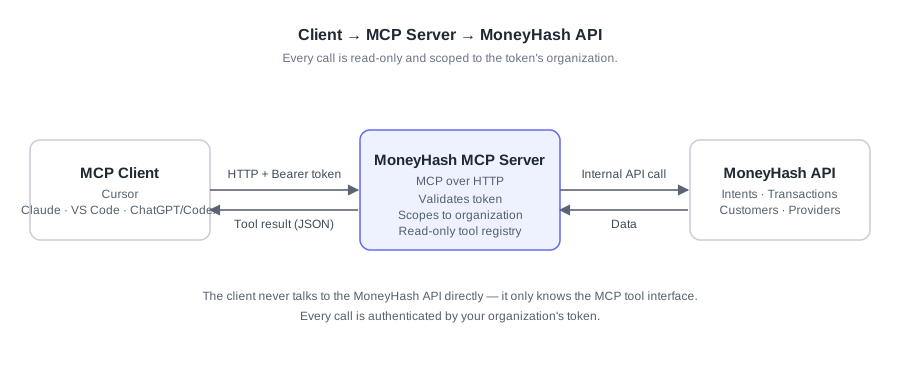
Your AI assistant (the MCP client) sends each request over HTTP with your token. The MoneyHash MCP server checks the token, reads only your organization's data, and returns the result to the assistant. The client never calls the MoneyHash API directly.
Step 1: Get an API token
MCP access is set up for you by MoneyHash. You do not create tokens yourself.
- Contact your MoneyHash account manager or support and ask for MCP access.
- MoneyHash creates a token for your organization and sends it to you through a secure channel.
- Store the token in a secrets manager or the client's config file. Do not paste it into tickets, chats, or shared documents.
Each token is created for one mode:
| Token type | Reads | Use it for |
|---|---|---|
| Live | Live-mode data | Investigating real payments |
| Test | Test-mode data | Trying the MCP server without touching real payments |
Both modes run on MoneyHash production and use the same server URL. To query the other mode, ask MoneyHash for a token of that type.
Keep in mind:
- Tokens are scoped to one organization and cannot access any other organization's data.
- Tokens expire after 90 days. Ask MoneyHash for a new one and replace it in your client config.
- Treat the token as a secret. If it is exposed, contact MoneyHash immediately so it can be revoked.
Step 2: Connect your client
The server uses MCP over HTTP. Every client needs the same two values:
| Setting | Value |
|---|---|
| Server URL | https://agentic.moneyhash.io/mcp |
| Authorization header | Bearer <YOUR_API_TOKEN> |
Restart the client after adding the config so the MoneyHash tools load.
There are two ways to connect, depending on what your client supports:
| Option A: Direct HTTP | Option B: Local bridge (mcp-remote) | |
|---|---|---|
| How it works | The client connects to the server URL itself and sends your token in a header | A small program on your machine connects to the server and hands the results to the client |
| Use it for | Cursor, Claude Code, ChatGPT/Codex, VS Code | Claude Desktop |
| Why | Simplest setup, nothing extra to install | Claude Desktop's config file only accepts programs that run on your machine, not a server URL |
| Requires | Nothing extra | Node.js (it runs through npx) |
If your client accepts a server URL and headers, use Option A. If it only accepts a command to run, as Claude Desktop does, use Option B.
Option A: Direct HTTP
Cursor
Add to ~/.cursor/mcp.json (or Settings → MCP):
{
  "mcpServers": {
    "moneyhash": {
      "type": "http",
      "url": "https://agentic.moneyhash.io/mcp",
      "headers": { "Authorization": "Bearer <YOUR_API_TOKEN>" }
    }
  }
}
Claude Code
claude mcp add --transport http moneyhash \
  https://agentic.moneyhash.io/mcp \
  --header "Authorization: Bearer <YOUR_API_TOKEN>"
Run /mcp to confirm the server loaded.
ChatGPT / Codex
Add MoneyHash as a custom MCP server using the server URL and bearer token above. From the Codex CLI:
codex mcp add moneyhash --url https://agentic.moneyhash.io/mcp \
  --header "Authorization: Bearer <YOUR_API_TOKEN>"
VS Code
Add to .vscode/mcp.json. VS Code uses servers, not mcpServers:
{
  "servers": {
    "moneyhash": {
      "type": "http",
      "url": "https://agentic.moneyhash.io/mcp",
      "headers": { "Authorization": "Bearer <YOUR_API_TOKEN>" }
    }
  }
}
Option B: Local bridge for Claude Desktop
Claude Desktop starts MCP servers as local programs. It does not accept a url entry in its config file, and skips it with the message "not valid MCP server configurations." mcp-remote is a small bridge that Claude Desktop starts locally and that forwards to the MoneyHash server. It runs through npx, which comes with Node.js. Install Node.js (LTS) first if npx is not already on your machine.
- In Claude Desktop, open the Claude menu in your system menu bar (not the settings inside the chat window), then Settings → Developer → Edit Config. This opens
claude_desktop_config.json.- macOS:
~/Library/Application Support/Claude/claude_desktop_config.json - Windows:
%APPDATA%\Claude\claude_desktop_config.json
- macOS:
- Add the
mcpServersblock below at the top level of the file, next to any existing keys. Do not put it insidepreferences. If the file already has anmcpServersobject, addmoneyhashinside it.
{
  "mcpServers": {
    "moneyhash": {
      "command": "npx",
      "args": [
        "-y",
        "mcp-remote",
        "https://agentic.moneyhash.io/mcp",
        "--header",
        "Authorization:${AUTH_HEADER}"
      ],
      "env": {
        "AUTH_HEADER": "Bearer <YOUR_API_TOKEN>"
      }
    }
  }
}- Fully quit Claude Desktop (Cmd+Q on macOS, not just closing the window) and reopen it.
npx
Run which npx in a terminal (macOS) and put the full path it prints, for example /usr/local/bin/npx, in the "command" field instead of npx. Claude Desktop does not use your shell's full PATH.
Other clients
Any MCP client that supports HTTP servers works. Point it at https://agentic.moneyhash.io/mcp and send the token as a bearer token in the Authorization header.
Step 3: Run your first query
Every query runs against one account and one environment.
- Mode: set by the token. A live token reads live-mode data and a test token reads test-mode data, both on MoneyHash production. To query the other mode, use a token of that type.
- Account: every account-level tool takes an account ID. If the assistant asks for one, copy it from the MoneyHash Dashboard under Settings → Accounts and include it in your prompt.
Example session:
On account <ACCOUNT_ID>, get payment intent <INTENT_ID> and explain why it failed.

Show the provider interactions for the failed transaction.
More examples:
- "Was this a provider decline, or did it fail before reaching the provider?"
- "Find [email protected] and list their recent transactions."
- "Which providers are connected to account
<ACCOUNT_ID>?" - "Was a webhook sent for transaction
<TRANSACTION_ID>, and was it delivered?"
Tool reference
All tools are read-only. Parameter names below are exactly as the server exposes them. List-style tools accept optional page and page_size.
| Area | Tool | What it does | Required parameters | Optional parameters |
|---|---|---|---|---|
| Intents | getIntent | Fetch a payment intent by ID | intent_id | account_id, is_live |
| Intents | getIntentTransactions | All transactions for a payment intent | account_id, intent_id | page, page_size, is_live |
| Transactions | getTransaction | Fetch a transaction by UUID | transaction_uuid | account_id, is_live |
| Transactions | listTransactions | List transactions | account_id | status, page, page_size, is_live |
| Provider interactions | getProviderInteractions | Provider API request and response for a transaction | account_id, transaction_uuid | page, page_size, is_live |
| Webhooks | getWebhookDeliveries | Webhook delivery history | account_id | intent_id, transaction_uuid, page, page_size, is_live |
| Customers | listCustomers | List customers | account_id | email, page, page_size, is_live |
| Customers | getCustomer | A customer by UUID, with saved cards | account_id, customer_uuid | is_live |
| Customers | getCustomerTransactions | All transactions for a customer | account_id, customer_uuid | page, page_size, is_live |
| Saved cards | listCards | Saved cards for a customer | account_id, customer_uuid | is_live |
| Saved cards | getCardToken | Card token details | account_id, card_uuid | is_live |
| Providers | listConnectedProviders | Connected payment providers | account_id | page, page_size, is_live |
| Accounts | listAccounts | Accounts in your organization | account_id | page, page_size, is_live |
| Payment links | getPaymentLink | Payment link details | account_id, payment_link_id | is_live |
| Analytics | getAnalytics | Dashboard analytics (see below) | metric, start_date, end_date | see below |
| Analytics | listAnalyticsMetrics | Lists supported metrics and valid filter values | none | none |
Always include account_id when you ask about an intent or transaction, even though getIntent and getTransaction list it as optional.
Analytics
getAnalytics returns the same numbers your Dashboard shows for the same filters. It is read-only.
| Parameter | Meaning |
|---|---|
metric (required) | One of acceptance_rate, success_rate, decline_reasons, summary |
start_date, end_date (required) | YYYY-MM-DD, inclusive UTC days, at most 30 days apart |
group_by | none (default), provider, or method. Rate metrics only |
providers | Provider display names, up to 10 |
currencies | Currency codes, for example ['SAR'] |
initiation | CIT or MIT |
account_ids | Restrict to these account IDs, up to 20 |
decline_type | SOFT_DECLINE or HARD_DECLINE. decline_reasons only |
limit | Top N rows, 1 to 50, default 10. decline_reasons only |
- Only provider and method are breakdowns. Everything else is a filter. To split by currency, run one query per currency.
- If the response is flagged
empty, there is no data for that filter. It does not mean 0%. - Names are shown exactly as returned. Blank or
UNKNOWNvalues are not interpreted.
Limits and behavior
| Item | Behavior |
|---|---|
| Access | Read-only. No payment can be created, captured, refunded, or edited. |
| Scope | A token reads only the organization it was issued for. |
| Mode | Fixed per token: live or test, both on MoneyHash production. |
| Rate limit | 60 requests per minute per token. |
| Token lifetime | 90 days. |
| Analytics range | At most 30 days per query. |
Troubleshooting
FAQ
Updated 3 days ago