

Apple Pay
Apple Pay™ lets customers pay with the cards in their Apple Wallet using Face ID or Touch ID. The MoneyHash SDK handles merchant validation and hands you the configuration to start a payment - you render the button, Apple authorizes, and you submit the resulting receipt to MoneyHash to complete the payment. This page covers the full integration on every platform - Web (JavaScript), iOS, Flutter, and React Native - plus Apple Pay recurring payments with merchant tokens (MPANs).
How it works
Whatever the platform, Apple Pay is the same three moves: get the Apple Pay configuration from MoneyHash, get an encrypted receipt from Apple, and submit that receipt back to MoneyHash. The difference is who presents the payment sheet:
- Web - you start an
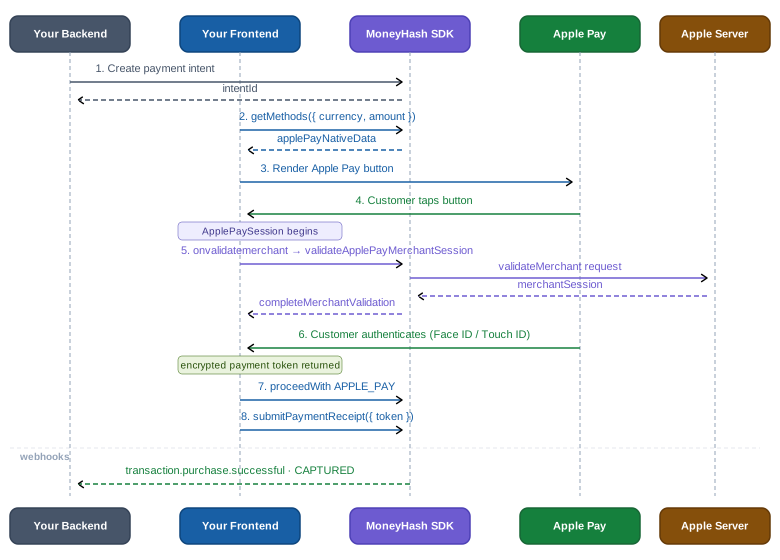
ApplePaySessionyourself with Apple's JS SDK; MoneyHash handles the merchant validation step viavalidateApplePayMerchantSession. - iOS · Flutter · React Native - the SDK presents the native payment sheet for you:
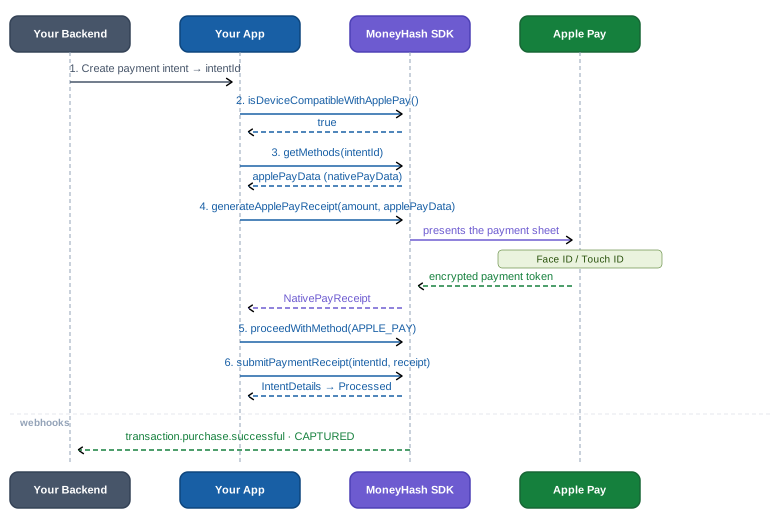
generateApplePayReceiptshows the sheet, handles authentication, and returns the receipt.
Four parties touch an Apple Pay payment, and each holds exactly one piece. Your app owns the button and the checkout UI — nothing sensitive. Apple Wallet authenticates the customer and answers with the receipt: an encrypted payment token built on the card's device account number, so the real card number is never exposed to you or to MoneyHash's SDK. MoneyHash supplies the configuration the sheet needs (nativePayData, straight from your Apple Pay connection) and is the only party that can turn the receipt into money - it decrypts the token server-side and routes the charge to your provider. That's why the integration is safe by construction: everything your code handles is either public configuration or an opaque encrypted blob.
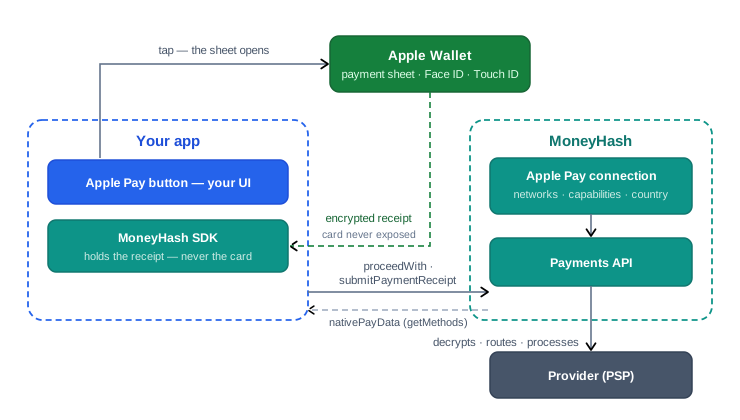
Step by step, a payment looks like this:
- Your backend creates a payment intent
- The SDK retrieves the Apple Pay configuration via
getMethods - You render the Apple Pay button
- The customer taps it - the payment sheet opens
- The customer authenticates with Face ID / Touch ID
- Apple returns an encrypted payment token (the receipt)
- You call
proceedWiththensubmitPaymentReceiptwith the receipt - MoneyHash processes the payment and delivers webhooks
In sequence form - on the web, you drive the ApplePaySession and MoneyHash handles merchant validation:
On iOS, Flutter, and React Native, the SDK presents the native sheet - no session, no merchant validation on your side:
Prerequisites
- An Apple Pay connection configured and completed in your MoneyHash dashboard - enabling Apple Pay is a property of the connection, not of your MoneyHash account. The supported networks, merchant capabilities, and country the SDK returns in
nativePayDataall come from this connection, so the integration only works once the connection setup is finished. - Web only: your domain registered and verified with Apple Pay, HTTPS enabled, and the Apple Pay JS SDK loaded
- Mobile only: Apple Pay entitlements configured in your app (Xcode → Signing & Capabilities → Apple Pay)
Apple Pay runs on Apple devices only. On the web that means Safari and Safari-based browsers; on mobile it means the iOS side of your Flutter / React Native app - the SDK throws an unsupported-platform error if called on Android, so gate the button behind the compatibility check below.
Integration steps
The same five steps on every platform - pick your platform's tab in each step.
Step 1 - Set up Apple Pay in your app
On the web, load Apple's JS SDK. On mobile, set the Apple Pay configuration when building the SDK: the merchant display name shown in the payment sheet, and any billing data to collect from the wallet (e.g. the customer's email).
<script src="https://applepay.cdn-apple.com/jsapi/1.latest/apple-pay-sdk.js"></script>let moneyHash = MoneyHashSDKBuilder()
.setPublicKey("<YOUR_PUBLIC_API_KEY>")
.setApplePayConfiguration(ApplePayConfiguration(
collectibleBillingData: [.email],
merchantDisplayName: "Your Store"
))
.build()final moneyHash = MoneyHashSDKBuilder()
.setNativeApplePayConfig(ApplePayConfiguration(
collectibleBillingData: [CollectibleBillingData.email],
merchantDisplayName: "Your Store",
))
.build();const moneyHash = MoneyHashSDKBuilder.setNativeApplePayConfig({
collectibleBillingData: ["email"],
merchantDisplayName: "Your Store",
}).build();Step 2 - Check availability and render the button
Only show the Apple Pay button when the device can pay. On the web, render Apple's official button element; on mobile you render your own button (Apple's Human Interface Guidelines apply) and gate it behind the compatibility check - remember every Apple Pay API on Flutter / React Native is iOS-only and throws on Android.
<apple-pay-button
  id="apple-pay-btn"
  buttonstyle="black"
  type="plain"
  locale="en-US"
  style="display:none; width:100%; height:44px;">
</apple-pay-button>

<script>
  // Check availability before rendering
  if (window.ApplePaySession && ApplePaySession.canMakePayments()) {
    document.getElementById("apple-pay-btn").style.display = "block";
  }
</script>
let isCompatible = try await moneyHash.isDeviceCompatibleWithApplePay()
guard isCompatible else { return } // hide the buttonif (!Platform.isIOS) return; // Apple Pay APIs throw off-iOS
final isCompatible = await moneyHash.isDeviceCompatibleWithApplePay();
if (!isCompatible) return; // hide the buttonif (Platform.OS !== "ios") return; // Apple Pay APIs reject off-iOS
const isCompatible = await moneyHash.isDeviceCompatibleWithApplePay();
if (!isCompatible) return; // hide the buttonStep 3 - Get the Apple Pay configuration
Fetch the methods and pull the Apple Pay express method's nativePayData - it carries everything the sheet needs (amount, currency, country, networks) plus the method_id used for merchant validation and receipt calls. Take these values from the response; don't hardcode them.
const { expressMethods } = await moneyHash.getMethods({
  currency: "<currency>",
  amount: "<amount>",
});

const applePayMethod = expressMethods.find((method) => method.id === "APPLE_PAY");
const applePayNativeData = applePayMethod?.nativePayData;
let methods = try await moneyHash.getMethods(
intentId: "<YOUR_INTENT_ID>",
intentType: .payment
)
guard let applePayMethod = methods.expressMethods?.first(where: { $0.id == "APPLE_PAY" }),
let applePayData = applePayMethod.nativePayData as? ApplePayData else {
return // Apple Pay not available on this flow
}final methods = await moneyHash.getMethods(
GetMethodsParams.withIntent("<YOUR_INTENT_ID>", IntentType.payment),
);
final applePayMethod =
methods.expressMethods?.firstWhere((m) => m.id == "APPLE_PAY");
final applePayData = applePayMethod?.nativePayData as ApplePayData?;
if (applePayData == null) return; // Apple Pay not available on this flowconst methods = await moneyHash.getMethods("<YOUR_INTENT_ID>", IntentType.Payment);
const applePayMethod = methods.expressMethods?.find((m) => m.id === "APPLE_PAY");
const applePayData = applePayMethod?.nativePayData;
if (!applePayData) return; // Apple Pay not available on this flownativePayData reference (snake_case on the web, camelCase ApplePayData on mobile):
| Web field | Mobile field | Description |
|---|---|---|
country_code | countryCode | Country code where the payment is processed |
currency_code | currencyCode | ISO 4217 currency code |
supported_networks | supportedNetworks | Supported card networks - e.g. ["visa", "masterCard"] |
amount | amount | Payment amount |
method_id | methodID | MoneyHash method identifier - required for merchant validation, receipt submission, and tokenization |
| - | merchantId · merchantCapabilities | Merchant identifier and capabilities for the native sheet |
Step 4 - Present Apple Pay and get the receipt
This is the one step where the platforms genuinely differ. On the web you start an ApplePaySession yourself - MoneyHash handles the merchant-validation callback. On mobile, one call presents the sheet, waits for Face ID / Touch ID, and resolves with the receipt.
document.getElementById("apple-pay-btn").addEventListener("click", () => {
  const session = new ApplePaySession(3, {
    countryCode: applePayNativeData.country_code,
    currencyCode: applePayNativeData.currency_code,
    supportedNetworks: applePayNativeData.supported_networks,
    merchantCapabilities: ["supports3DS"],
    total: {
      label: "Total",
      type: "final",
      amount: `${applePayNativeData.amount}`,
    },
    requiredShippingContactFields: ["email"],
  });

  // Merchant validation — MoneyHash handles this
  session.onvalidatemerchant = (event) => {
    moneyHash
      .validateApplePayMerchantSession({
        methodId: applePayNativeData.method_id,
        validationUrl: event.validationURL,
      })
      .then((merchantSession) => session.completeMerchantValidation(merchantSession))
      .catch(() => session.completeMerchantValidation({}));
  };

  // Customer authorized — collect the receipt
  session.onpaymentauthorized = (event) => {
    const applePayReceipt = {
      receipt: JSON.stringify({ token: event.payment.token }),
      receiptBillingData: {
        email: event.payment.shippingContact?.emailAddress,
      },
    };

    session.completePayment(ApplePaySession.STATUS_SUCCESS);

    // Hand the receipt to Step 5
    handleApplePayReceipt(applePayReceipt);
  };

  // Customer cancelled the sheet
  session.oncancel = () => {
    console.log("Apple Pay sheet closed");
  };

  session.begin();
});
// Presents the sheet, waits for Face ID / Touch ID, returns the receipt
let receipt = try await moneyHash.generateApplePayReceipt(
depositAmount: applePayData.amount!,
applePayData: applePayData
)// Presents the sheet, waits for Face ID / Touch ID, returns the receipt
final receipt = await moneyHash.generateApplePayReceipt(
ApplePayReceiptParams.withApplePayData(applePayData.amount!, applePayData),
);// Presents the sheet, waits for Face ID / Touch ID, returns the receipt
const receipt = await moneyHash.generateApplePayReceipt({
depositAmount: applePayData.amount!,
applePayData,
});Web: call session.completePayment(ApplePaySession.STATUS_SUCCESS) before submitting the receipt to MoneyHash - failing to complete the session leaves the Apple Pay sheet open and confuses the customer. Mobile: if the customer dismisses the sheet, generateApplePayReceipt throws - treat that as a cancellation (return to the method list), not as a payment failure.
Step 5 - Select Apple Pay and submit the receipt
Attach Apple Pay to the intent with proceedWith, then submit the receipt. The returned intent details land on the final state - Processed on success.
async function handleApplePayReceipt(applePayReceipt) {
  try {
    await moneyHash.proceedWith({
      type: "method",
      id: "APPLE_PAY",
      intentId,
    });

    const intentDetails = await moneyHash.submitPaymentReceipt({
      intentId,
      nativeReceiptData: applePayReceipt,
    });

    console.log(intentDetails);
  } catch (error) {
    console.error(error);
  }
}
_ = try await moneyHash.proceedWithMethod(
intentId: "<YOUR_INTENT_ID>",
intentType: .payment,
selectedMethodId: "APPLE_PAY",
methodType: .expressMethod,
metaData: nil,
useWalletBalance: nil,
installmentPlanData: nil
)
let intentDetails = try await moneyHash.submitPaymentReceipt(
intentId: "<YOUR_INTENT_ID>",
nativePayReceipt: receipt
)await moneyHash.proceedWithMethod(
"<YOUR_INTENT_ID>",
IntentType.payment,
"APPLE_PAY",
MethodType.expressMethod,
null, // methodMetaData
null, // useWalletBalance
);
final intentDetails = await moneyHash.submitPaymentReceipt(
"<YOUR_INTENT_ID>",
receipt!,
);await moneyHash.proceedWithMethod(
"<YOUR_INTENT_ID>",
IntentType.Payment,
"APPLE_PAY",
MethodType.ExpressMethod
);
const intentDetails = await moneyHash.submitPaymentReceipt(
"<YOUR_INTENT_ID>",
receipt
);Always call proceedWith before submitPaymentReceipt - submitting the receipt without first selecting Apple Pay on the intent will cause the payment to fail. Generating the receipt before or after proceedWith are both fine; only the submit order matters.
Accept Apple Pay recurring payments (MPANs)
Apple Pay Merchant Tokens (MPANs) let you tokenize an Apple Pay payment for recurring and merchant-initiated transactions: an Apple Pay network token becomes a reusable MoneyHash universal card token that can be charged for future payments without the customer being present.
If you're adding Apple Pay to a subscription checkout - MoneyHash handles Apple Pay recurring billing through a dashboard configuration. See Subscriptions with Apple Pay.
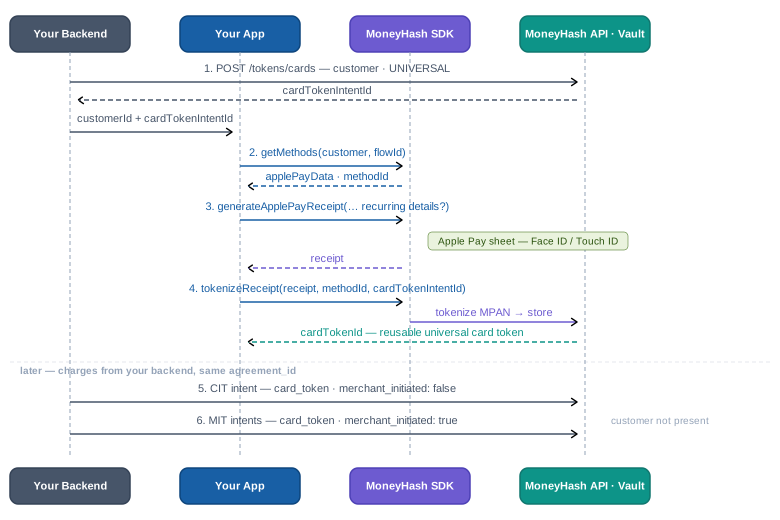
This flow lets you tokenize an Apple Pay network token via the platform SDK, store it as a reusable universal card token in the Vault, and charge it for both customer-initiated (CIT) and merchant-initiated (MIT) unscheduled payments. Apple supports three recurring scenarios:
- Recurring Payments - subscriptions, memberships, and regular billing cycles
- Automatic Reload - topping up accounts when balances fall below a threshold
- Deferred Payment - pre-authorization for services delivered at a later date
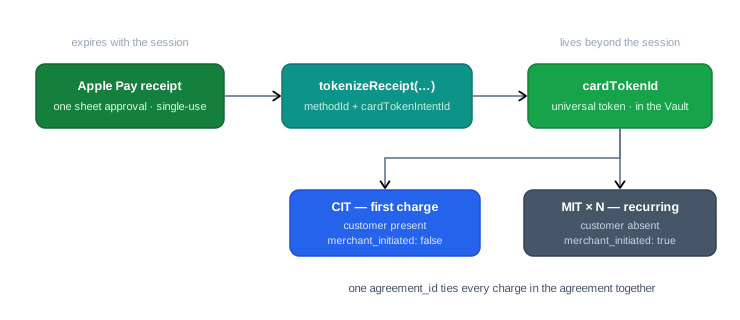
The key idea: a normal Apple Pay receipt is single-use and session-bound - it pays one intent and dies with the sheet. Recurring needs something that outlives the session, so instead of spending the receipt on a payment, you tokenize it: tokenizeReceipt exchanges the one-time receipt for a merchant token (MPAN) stored in the Vault as a universal card token. From then on the customer never sees another Apple Pay sheet - your backend charges the cardTokenId directly: once with the customer present (CIT), then repeatedly without them (MIT), with a single agreement_id tying every charge in the agreement together.
This feature is supported on iOS, Flutter, and React Native only - MoneyHash iOS SDK v3.0.0+, Flutter SDK v4.0.0+, React Native SDK v4.0.0+. You also need a payment flow that exposes Apple Pay as an express method, Apple Pay entitlements in your app, and a MoneyHash customer.
In sequence form, across your backend, your app, and the Vault:
Step 1 - Create or retrieve a customer
Use the Customer API to create a new customer or retrieve an existing one. Store the customer_id - you need it for the card token intent and for every payment intent in the agreement.
Recurring tokens are always associated with a customer record. The same customer_id must be used on the card token intent and on every CIT and MIT payment intent in the agreement.
Step 2 - Create a card token intent
Create a card token intent on your backend - this is the intent the Apple Pay receipt will be tokenized against.
curl --request POST \
  --url https://web.moneyhash.io/api/v1.4/tokens/cards/ \
  --header 'Authorization: Token <your_api_key>' \
  --header 'Content-Type: application/json' \
  --data '{
    "customer": "<CUSTOMER_ID>",
    "card_token_type": "UNIVERSAL",
    "webhook_url": "https://yourbackend.com/webhooks/moneyhash"
  }'
{
"id": "<CARD_TOKEN_INTENT_ID>"
}Retain the id as cardTokenIntentId - you pass it to tokenizeReceipt in Step 5.
Step 3 - Get the Apple Pay configuration
Call getMethods with your customer and flowId to retrieve the Apple Pay express method and its nativePayData. Retain the methodID - it is used in tokenizeReceipt.
const { expressMethods } = await moneyHash.getMethods({
  currency: "<currency>",
  amount: "<amount>",
  customer: "<customer_id>",
  flowId: "<flow_id>",
});

const applePayMethod = expressMethods.find((m) => m.id === "APPLE_PAY");
const methodId = applePayMethod?.nativePayData?.method_id;
let methods = try await moneyHash.getMethods(
currency: "<currency>",
amount: <amount>,
customer: "<customer_id>",
flowId: "<flow_id>",
operation: nil,
customFields: nil
)
guard let applePayMethod = methods.expressMethods?.first(where: { $0.id == "APPLE_PAY" }),
let applePayData = applePayMethod.nativePayData as? ApplePayData,
let methodId = applePayData.methodID else {
throw PaymentError.applePayNotAvailable
}final methods = await moneyHash.getMethods(
GetMethodsParams.withCurrency(
currency: "<currency>",
amount: <amount>,
customer: "<customer_id>",
flowId: "<flow_id>",
),
);
final applePayMethod =
methods.expressMethods?.firstWhere((m) => m.id == "APPLE_PAY");
final applePayData = applePayMethod?.nativePayData as ApplePayData?;
final methodId = applePayData!.methodID!;const methods = await moneyHash.getMethods({
currency: "<currency>",
amount: <amount>,
customer: "<customer_id>",
flowId: "<flow_id>",
});
const applePayMethod = methods.expressMethods?.find((m) => m.id === "APPLE_PAY");
const applePayData = applePayMethod?.nativePayData;
const methodId = applePayData!.methodId!;Step 4 - Generate the Apple Pay receipt
MoneyHash provides two options for generating the receipt.
Option A - Simple (recommended when recurring details don't need to be shown in the Apple Pay sheet):
// On the web the receipt comes from the ApplePaySession you already run
// in the integration steps — capture it on authorization:
session.onpaymentauthorized = (event) => {
  const receipt = JSON.stringify({ token: event.payment.token });
  session.completePayment(ApplePaySession.STATUS_SUCCESS);
  tokenizeApplePayReceipt(receipt); // Step 5
};
let receipt = try await moneyHash.generateApplePayReceipt(
depositAmount: applePayData.amount!,
applePayData: applePayData
)final receipt = await moneyHash.generateApplePayReceipt(
ApplePayReceiptParams.withApplePayData(applePayData.amount!, applePayData),
);const receipt = await moneyHash.generateApplePayReceipt({
depositAmount: applePayData.amount!,
applePayData,
});Option B - Advanced (shows the recurring or automatic-reload details inside the Apple Pay sheet - requires iOS 16.0+):
Option B requires iOS 16.0+. Always provide a fallback to Option A for devices running earlier iOS versions.
Example - recurring payment (subscription):
// Add Apple's recurringPaymentRequest to the ApplePaySession request so
// the subscription details show inside the sheet (Safari 16+):
const session = new ApplePaySession(14, {
  countryCode: applePayNativeData.country_code,
  currencyCode: applePayNativeData.currency_code,
  supportedNetworks: applePayNativeData.supported_networks,
  merchantCapabilities: ["supports3DS"],
  total: { label: "Monthly Subscription", type: "final", amount: "9.99" },
  recurringPaymentRequest: {
    paymentDescription: "Monthly Subscription Service",
    regularBilling: {
      label: "Monthly Subscription",
      amount: "9.99",
      paymentTiming: "recurring",
      recurringPaymentStartDate: new Date(),
      recurringPaymentIntervalUnit: "month",
      recurringPaymentIntervalCount: 1,
    },
    billingAgreement: "You will be charged monthly until cancelled.",
    managementURL: "https://example.com/manage",
    tokenNotificationURL: "https://example.com/terms",
  },
});
// merchant validation + onpaymentauthorized exactly as in the
// integration steps — capture the receipt on authorization
if #available(iOS 16.0, *) {
let recurringBilling = RecurringPaymentSummaryItem(
label: "Monthly Subscription",
amount: 9.99,
startDate: Date(),
endDate: Calendar.current.date(byAdding: .year, value: 1, to: Date()),
intervalCount: 1,
intervalUnit: .month
)
let recurringPayment = RecurringPaymentRequest(
paymentDescription: "Monthly Subscription Service",
regularBilling: recurringBilling,
trialBilling: nil,
billingAgreement: "You will be charged monthly until cancelled.",
managementURL: "https://example.com/manage",
tokenNotificationURL: "https://example.com/terms"
)
let receipt = try await moneyHash.generateApplePayReceipt(
depositAmount: applePayData.amount!,
merchantIdentifier: applePayData.merchantId!,
currencyCode: applePayData.currencyCode!,
countryCode: applePayData.countryCode!,
supportedNetworks: ["visa", "mastercard"],
merchantCapabilities: applePayData.merchantCapabilities,
recurringPayment: recurringPayment,
automaticReload: nil
)
} else {
// Fallback to Option A
}final receipt = await moneyHash.generateApplePayReceipt(
ApplePayReceiptParams.withCustomData(
depositAmount: applePayData.amount!,
merchantIdentifier: applePayData.merchantId!,
currencyCode: applePayData.currencyCode!,
countryCode: applePayData.countryCode!,
supportedNetworks: ["visa", "mastercard"],
merchantCapabilities: applePayData.merchantCapabilities,
recurringPayment: RecurringPaymentRequest(
paymentDescription: "Monthly Subscription Service",
regularBilling: RecurringPaymentSummaryItem(
label: "Monthly Subscription",
amount: 9.99,
startDate: DateTime.now(),
intervalCount: 1,
intervalUnit: IntervalUnit.month,
),
billingAgreement: "You will be charged monthly until cancelled.",
managementURL: "https://example.com/manage",
tokenNotificationURL: "https://example.com/terms",
),
),
);const receipt = await moneyHash.generateApplePayReceipt({
depositAmount: applePayData.amount!,
merchantIdentifier: applePayData.merchantId!,
currencyCode: applePayData.currencyCode!,
countryCode: applePayData.countryCode!,
supportedNetworks: ["visa", "mastercard"],
merchantCapabilities: applePayData.merchantCapabilities,
recurringPayment: {
paymentDescription: "Monthly Subscription Service",
regularBilling: {
label: "Monthly Subscription",
amount: 9.99,
startDate: new Date().toISOString(),
intervalCount: 1,
intervalUnit: IntervalUnit.month,
},
billingAgreement: "You will be charged monthly until cancelled.",
managementURL: "https://example.com/manage",
tokenNotificationURL: "https://example.com/terms",
},
});Example - automatic reload (wallet top-up):
// Add Apple's automaticReloadPaymentRequest to the ApplePaySession
// request (Safari 16+):
const session = new ApplePaySession(14, {
  countryCode: applePayNativeData.country_code,
  currencyCode: applePayNativeData.currency_code,
  supportedNetworks: applePayNativeData.supported_networks,
  merchantCapabilities: ["supports3DS"],
  total: { label: "Wallet Auto-Reload", type: "final", amount: "25.00" },
  automaticReloadPaymentRequest: {
    paymentDescription: "Automatic Wallet Reload",
    automaticReloadBilling: {
      label: "Wallet Auto-Reload",
      amount: "25.00",
      paymentTiming: "automaticReload",
      automaticReloadPaymentThresholdAmount: "5.00",
    },
    billingAgreement: "Your wallet will be automatically reloaded when balance is low.",
    managementURL: "https://example.com/wallet",
    tokenNotificationURL: "https://example.com/wallet-terms",
  },
});
if #available(iOS 16.0, *) {
let automaticReloadBilling = AutomaticReloadPaymentSummaryItem(
label: "Wallet Auto-Reload",
amount: 25.00,
thresholdAmount: 5.00
)
let automaticReload = AutomaticReloadPaymentRequest(
paymentDescription: "Automatic Wallet Reload",
automaticReloadBilling: automaticReloadBilling,
billingAgreement: "Your wallet will be automatically reloaded when balance is low.",
managementURL: "https://example.com/wallet",
tokenNotificationURL: "https://example.com/wallet-terms"
)
let receipt = try await moneyHash.generateApplePayReceipt(
depositAmount: applePayData.amount!,
merchantIdentifier: applePayData.merchantId!,
currencyCode: applePayData.currencyCode!,
countryCode: applePayData.countryCode!,
supportedNetworks: ["visa", "mastercard"],
merchantCapabilities: applePayData.merchantCapabilities,
recurringPayment: nil,
automaticReload: automaticReload
)
} else {
// Fallback to Option A
}final receipt = await moneyHash.generateApplePayReceipt(
ApplePayReceiptParams.withCustomData(
depositAmount: applePayData.amount!,
merchantIdentifier: applePayData.merchantId!,
currencyCode: applePayData.currencyCode!,
countryCode: applePayData.countryCode!,
supportedNetworks: ["visa", "mastercard"],
merchantCapabilities: applePayData.merchantCapabilities,
automaticReload: AutomaticReloadPaymentRequest(
paymentDescription: "Automatic Wallet Reload",
automaticReloadBilling: AutomaticReloadPaymentSummaryItem(
label: "Wallet Auto-Reload",
amount: 25.00,
thresholdAmount: 5.00,
),
billingAgreement: "Your wallet will be automatically reloaded when balance is low.",
managementURL: "https://example.com/wallet",
tokenNotificationURL: "https://example.com/wallet-terms",
),
),
);const receipt = await moneyHash.generateApplePayReceipt({
depositAmount: applePayData.amount!,
merchantIdentifier: applePayData.merchantId!,
currencyCode: applePayData.currencyCode!,
countryCode: applePayData.countryCode!,
supportedNetworks: ["visa", "mastercard"],
merchantCapabilities: applePayData.merchantCapabilities,
automaticReload: {
paymentDescription: "Automatic Wallet Reload",
automaticReloadBilling: {
label: "Wallet Auto-Reload",
amount: 25.0,
thresholdAmount: 5.0,
},
billingAgreement: "Your wallet will be automatically reloaded when balance is low.",
managementURL: "https://example.com/wallet",
tokenNotificationURL: "https://example.com/wallet-terms",
},
});Step 5 - Tokenize the receipt
Call tokenizeReceipt with the Apple Pay receipt, the methodId from Step 3, and the cardTokenIntentId from Step 2. It returns a reusable cardTokenId.
const cardTokenId = await moneyHash.tokenizeReceipt({
  receipt,          // JSON.stringify({ token }) from the session
  methodId,         // method_id from Step 3
  cardTokenIntentId,
});
let cardTokenId = try await moneyHash.tokenizeReceipt(
receipt: receipt.receipt,
methodId: methodId,
cardTokenIntentId: cardTokenIntentId
)final cardTokenId = await moneyHash.tokenizeReceipt(
receipt!.receipt,
methodId,
cardTokenIntentId,
);const cardTokenId = await moneyHash.tokenizeReceipt({
receipt: receipt.receipt!,
methodId,
cardTokenIntentId,
});Step 6 - Create the CIT payment intent
Create the first payment using the Apple Pay card token. This is a customer-initiated transaction (CIT) - the customer is present for this payment.
curl --request POST \
  --url https://web.moneyhash.io/api/v1.4/payments/intent/ \
  --header 'Authorization: Token <your_api_key>' \
  --header 'Content-Type: application/json' \
  --data '{
    "amount": 20,
    "amount_currency": "USD",
    "operation": "purchase",
    "customer": "<CUSTOMER_ID>",
    "card_token": "<APPLE_PAY_CARD_TOKEN_ID>",
    "merchant_initiated": false,
    "payment_type": "UNSCHEDULED",
    "paying_with_network_token": true,
    "recurring_data": {
      "agreement_id": "<YOUR_AGREEMENT_ID>"
    },
    "webhook_url": "https://yourbackend.com/webhooks/moneyhash"
  }'
Step 7 - Create MIT payment intents
Every subsequent charge uses the same card_token and agreement_id. These are merchant-initiated transactions (MIT) - the customer is not present.
curl --request POST \
  --url https://web.moneyhash.io/api/v1.4/payments/intent/ \
  --header 'Authorization: Token <your_api_key>' \
  --header 'Content-Type: application/json' \
  --data '{
    "amount": 20,
    "amount_currency": "USD",
    "operation": "purchase",
    "customer": "<CUSTOMER_ID>",
    "card_token": "<APPLE_PAY_CARD_TOKEN_ID>",
    "merchant_initiated": true,
    "payment_type": "UNSCHEDULED",
    "paying_with_network_token": true,
    "recurring_data": {
      "agreement_id": "<YOUR_AGREEMENT_ID>"
    },
    "webhook_url": "https://yourbackend.com/webhooks/moneyhash"
}'Use the same agreement_id across all CIT and MIT intents in the same recurring agreement. The agreement_id is a value you generate and manage - use a UUID or any unique identifier that ties all charges in the agreement together.
Handling
- Order matters once:
submitPaymentReceipt(andtokenizeReceipt) must come after the receipt exists, and receipt submission must come afterproceedWithselected Apple Pay on the intent. - Receipts are single-use. Generate a fresh receipt for every payment attempt - never cache one across attempts.
- Cancellation is not failure. Web: handle
session.oncancel. Mobile:generateApplePayReceiptthrows when the sheet is dismissed - return the customer to the method list. - Take amounts from
applePayData. The amount, currency, country, and networks come from your dashboard configuration viagetMethods- hardcoding them invites mismatches the sheet will reject. - Gate by platform.
canMakePayments()on web,isDeviceCompatibleWithApplePay()on mobile - and on Flutter / React Native remember every Apple Pay API is iOS-only. - Card intelligence before submitting: you can run a receipt BIN lookup (
getApplePayBinLookup/binLookupByReceipt) between generating and submitting to branch on the card's brand, type, or issuer - see SDK Architecture. - Webhooks are the source of truth. The SDK response tells the customer what happened; your backend should confirm on
transaction.purchase.successful.
Updated 4 days ago